What Is a Program Monitor

The program monitor shows your edited timeline as you build it, displaying the current cut with all edits, effects, and audio mixed together.

In this article

Related Terms

Start Video editing now

What is the Program Monitor?

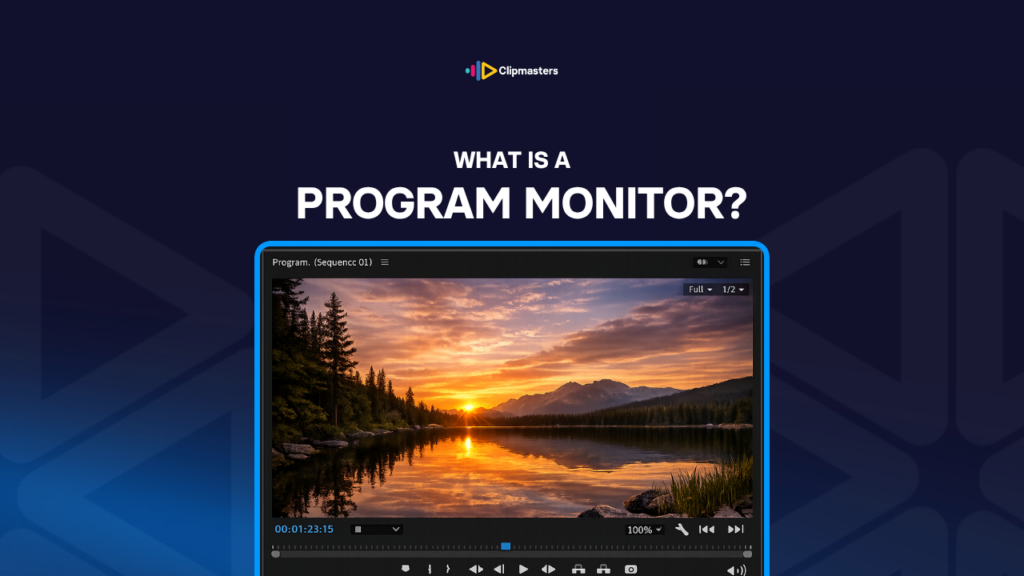
The program monitor is the part of an editing screen that shows your edited timeline as you build it. Some software calls it the timeline monitor, the record monitor, or the canvas.

It shows the cut as it stands right now. The clips in their edited order, the effects you have added, the audio mixed together, ready to watch.

Most editing screens have two monitors that work as a pair:

  • Source monitor. Shows your raw clips before they go into the timeline. You use it to pick and trim footage.
  • Program monitor. Shows your edited timeline. You use it to judge the cut you have built.

The two work together. You preview a clip in the source monitor, mark where it starts and ends, then send that piece to the timeline. The program monitor shows the result.

Here is what the program monitor shows you:

  • The current state of the timeline. Wherever the playhead sits, that frame shows up here.
  • All your effects. Color, filters, and motion graphics all appear in the preview.
  • The mixed audio. Every audio track at its current level, ready to hear.
  • All your clips in order. The full sequence as you have arranged it.
  • Your transitions. Crossfades, dissolves, and wipes all show up here.

The controls usually include:

  • Playback. Play, pause, and scrub through the timeline.
  • Zoom and pan. Change how much of the frame you see at once.
  • Audio meters. Show your audio levels as it plays.
  • Frame stepping. Move one frame at a time for fine work.
  • Timecode. Show your exact spot in the timeline.
  • Full-screen preview. Watch at full delivery size.
  • Quality settings. Switch between draft (faster, rougher) and full quality.

The program monitor is where you judge your work. Whether a cut lands, whether the pacing feels right, whether an effect looks correct, you decide it all here.

Need editors who handle complex workflows efficiently?

Editors matched to your brand. Turnaround in as little as 24 hours.

Why the program monitor matters

Here are a few reasons the program monitor sits at the center of editing.

You judge the finished cut here. The program monitor shows the edit the way your viewer will see it. You decide if it works by watching it.

You see everything together. Effects, transitions, audio, and color all play as one. Without the program monitor, you would only see the pieces, never the whole.

You feel the pacing. How the edit flows over time shows up best during playback. You make your pacing calls here.

You catch continuity slips. Cuts that do not quite match, like a shift in action, an off eyeline, or a lighting change, show up when you watch. You spot the problems by playing it back.

You check the audio. The mix plays here the way your viewer will hear it. Audio problems get caught at this stage.

You see effects render. Color grading, motion graphics, and other effects all show up in the program monitor. You see the real result and adjust.

You prep for client review. Before you send an edit out, you watch it through here as a final check.

You confirm the export. What plays in the program monitor is basically what gets exported. The preview should match the final file.

You do detail work. Frame-by-frame checks for audio sync, color, and motion timing all happen here.

You compare with the source. Switching between the source monitor (raw clip) and the program monitor (your edit) lets you check your work.

For client jobs, the program monitor is where most of your attention lives during the refining and review stages. The source monitor handles assembly. The program monitor handles polish.

When you work with others, sharing the program monitor on screen during a call lets people see the cut in progress. Many modern reviews happen this way, live, during client calls.

How editors use the program monitor

Here is how the program monitor fits into day-to-day work.

Move the playhead. Click anywhere in the timeline to jump to that frame. The program monitor shows it.

Play back sections. Press play to watch from the playhead forward. Pause to stop. It all shows here.

Judge your cuts. Watch each cut in context. Does it work? Does the timing feel right? Should it land on a different frame? Then fix it in the timeline.

Adjust the pacing. Watch the full run and feel the flow. Where does it drag? Where does it rush? Change clip lengths and cut points based on what you see.

Check audio levels. The audio meters show your levels as it plays. Adjust if they are too high (peaking) or too low (too quiet to hear).

Confirm your effects. Color, filters, and motion graphics all render here. Tweak their settings based on what you see.

Go full-screen for big checks. For careful review, switch to full-screen. Seeing the cut at full size catches issues a small window hides.

Try different quality settings. Most software lets you preview at draft quality (faster, lower resolution) or full quality (slower, true to delivery). Draft is good for quick scrubbing. Full quality is for real evaluation.

Compare with the source monitor. When a cut feels off, load the raw clip in the source monitor and compare. Seeing both side by side helps you find the issue.

Take screenshots. For client notes or your own reference, grab a still of a specific frame to mark a moment in the cut.

Use timecode to talk about spots. The timecode is your shared reference for notes, like “at 0:32, the cut feels late.” You and your client point to spots this way.

For most client work, the program monitor is your main tool for refining. Source monitor for picking footage. Program monitor for polishing and reviewing.

Common program monitor mistakes

A few habits lead to sloppy or slow program monitor work.

Only working at draft quality. Lower quality is faster, but it does not show the real result. Some color issues, transition glitches, or motion blur problems only appear at full quality. Switch to full quality before you judge the cut.

Reviewing in too small a window. A half-size preview hides detail. Full-screen reviews catch what small windows miss.

Skipping full-speed playback. Scrubbing through the timeline feels different from playing it at full speed. Pacing calls in particular need full-speed playback.

Ignoring the audio meters. The meters show levels and clipping. If you only watch the picture, you miss audio problems the meters would have shown you.

Never going full-screen. Final review on a small monitor does not match how viewers will see it. At least one final check should be at full size.

Inconsistent color settings. The program monitor’s color setup should match your delivery target. If it does not, your choices will not carry over to the final file.

Working on one monitor only. Two-monitor setups, with the program monitor on one screen and the source and timeline on another, are much faster than a single cramped layout.

Forgetting to let it render. Some edits need the program monitor to render before they show. If you do not wait, you may be judging an old preview.

Skipping the audio listen. Some editors focus on the picture and never really listen. Audio problems often hide until you stop and listen closely.

Reviewing only the parts you just changed. Your final check should cover the whole piece, not just the latest edits. Pacing across the full video only shows during a full playthrough.

Misreading the timecode. The timecode shows your position. Read it wrong and you may send a client note that points to the wrong spot.

For client work, strong program monitor habits are part of being a professional. It is your main tool for judging the cut, and using it well is the difference between catching problems in time and shipping flawed work.

How Clipmasters Uses This

The program monitor is where an editor’s real judgment happens, so it helps to work with someone who treats it with care. At Clipmasters, your brand-matched editor reviews each cut at full quality, with the audio on, before anything reaches you. AI-assisted tools keep the work moving fast, and simple edits come back in as little as 24 hours, all as part of the edit.

Frequently asked questions

What's the difference between program monitor and source monitor?

The source monitor shows raw clips before they enter the timeline. The program monitor shows the edited timeline as it comes together. Both are part of the standard editing screen, and they do different jobs. Use the source monitor to pick and trim clips, and the program monitor to judge the edit.

Does Final Cut Pro have a program monitor?

Final Cut Pro X works a little differently. Its viewer acts as both the source and the program preview, switching modes depending on what you are doing. Older Final Cut Pro versions (7 and earlier) had the more traditional two-monitor layout. So the program monitor exists in spirit, but the name and layout are different.

Can I view the program monitor on a second screen?

Yes, most editing software supports two-monitor setups. You can send the program monitor to a second display, or to a dedicated reference monitor for color-critical work. This is standard for professional setups. The second display can also show your timeline at a larger size for detailed work.

What's the difference between program monitor and full-screen playback?

The program monitor in your editing screen is usually small, sized to fit next to the timeline and source monitor. Full-screen playback shows the same content at full display size, with the other interface elements hidden. Full-screen is for evaluation, and the smaller program monitor is for active editing.

How accurate is the program monitor preview?

It depends on your quality settings and color management. At full quality with proper color settings, the program monitor closely matches what your final exported file will look like on the delivery platform. At lower quality settings or with mismatched color, the preview can differ from the final output. For careful checks, use full quality with the correct color settings.

Loading video…